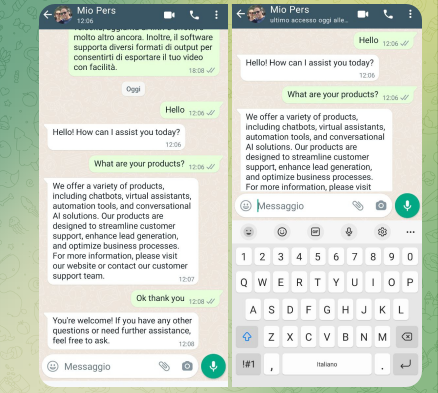
Are you looking for a quick and easy way to automatically reply to all WhatsApp messages you receive on your WhatsApp company account in order to offer timely support to your customers?
Or are you looking for a solution that helps you manage the all support requests that come to you via WhatsApp? Below you will find the best software solution to manage and set up auto reply messages on WhatsApp.
The program to use is WhatBot Plus, a powerful program designed both to send bulk Whatsapp messages and to create automatic replies for all needs. It is also possible to create a welcome message and nested menus to guide the user to receive all the information he is looking for, all in an automated way.
WhatBot now supports also ChatGPT integration to automatically and intelligently respond to messages coming from your contacts. Read the second part of the guide to understand how to configure and use AI technology to respond automatically!
How to set up auto reply messages with WhatBot (without ChatGPT)
WhatBot is a software capable of transforming your WhatsApp account into a real “Robot” that responds and interacts with the people who contact you via WhatsApp. Dowload Windows or Mac version from:


After installed you have first to click on Open WhatsApp button and scan the QR code to login with your WhatsApp account.
On Mac, WhatBot requires the presence of Firefox as a browser in order to function correctly and open the WhatsApp web page with the QR code
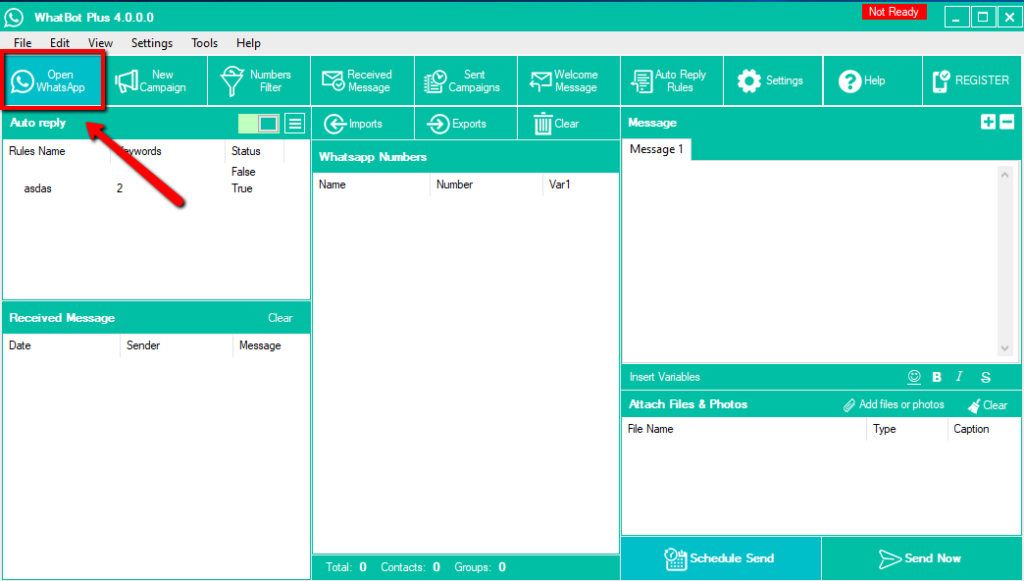
Once the “Ready” button appear on the top right of the program, you are ready to create all your automatic replies.
First of all click on Welcome Message button on the top and set up a “Welcome message”. This is a message that will be automatically sent to all people who will contact you via WhatsApp. This welcome message is sent only 1 time in 24 hours, so if a user send you more than 1 message per day, he will receive only one welcome message.
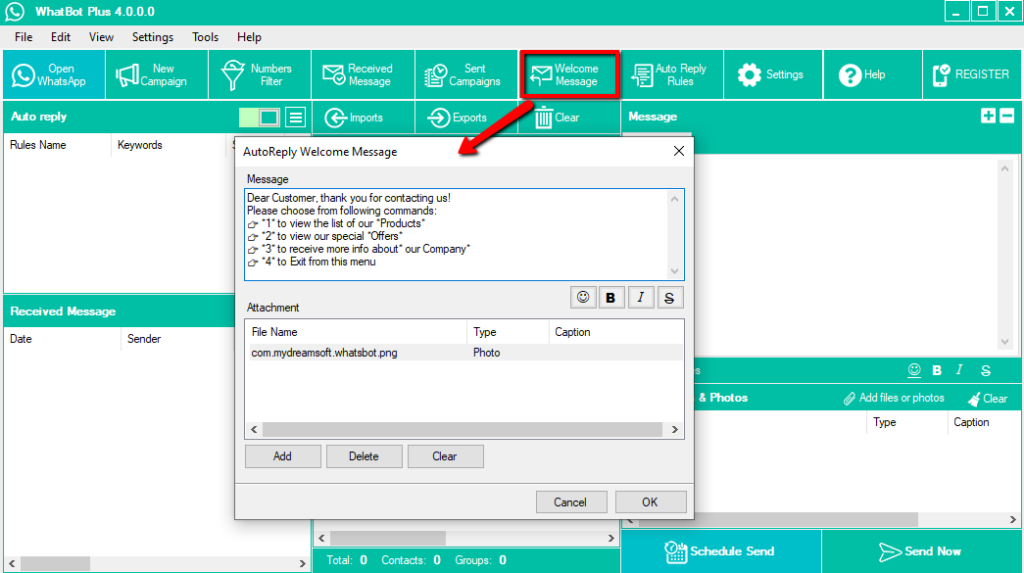
Welcome message is a good idea also if you want to keep track of all customers who send you a message via WhatsApp and ask them (automatically) for their name in order to save it in your customer database.
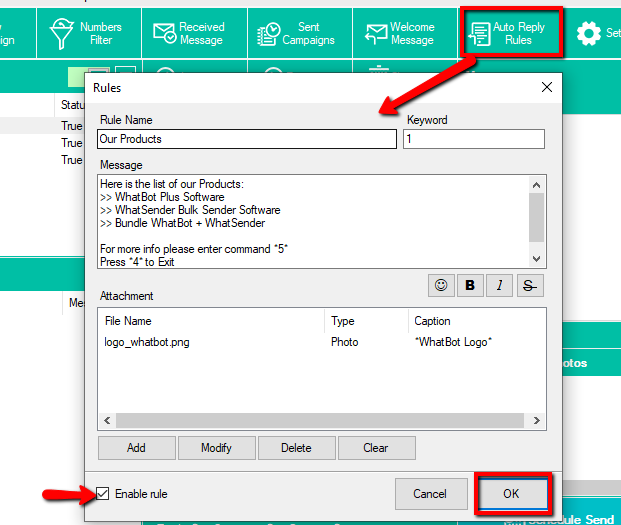
In addition to the welcome message to be sent automatically, with WhatBot it is also possible to create a “menu” of commands thanks to which the customer can ask for various information (and always receive them automatically via messages on WhatsApp).
For example, when the customer sends a message to your WhatsApp account for the first time, the system responds with a welcome message and then brings up a menu with the possible info that can be received (for example by sending command n. 1 the user will be able to receive the offers in progress, by sending the command n.2 he will be able to receive info about your company, and so on).
Click on Auto Reply Rules to start creating all automatic messages you want.
At any time you can activate or deactivate the sending of all your auto reply messages by clicking on the cursor at the top. By positioning the switch to the right (red), automatic replies will NO longer be sent.
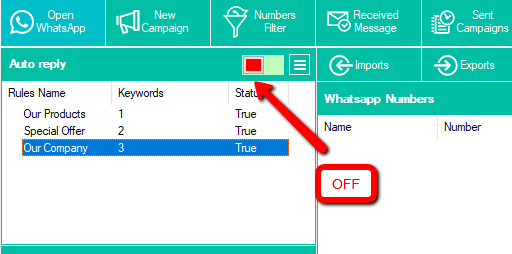
It is probably harder to explain than to do. I recommend that you download the demo version of WhatBot and try to set up a welcome message and other auto reply messages. In addition to the text message, you can also provide for the automatic sending of images, photos and PDF files.
HOW TO USE CHATGPT AUTO REPLY MESSAGES WITH WHATBOT
Here we will explain how to use ChatGPT with WhatsApp to automatically reply to your contacts!


Download WhatBot for Windows from link above (Mac version is still not integrated with Chat GTP).
After installed you have first to click on Open WhatsApp button and scan the QR code to login with your WhatsApp account. Once the scan has been done, a green READY message will appear at the top right.
To activate ChatGPT click on the left (on the Auto Reply section) on the icon with the three horizontal lines and select “Enable ChatGPT Reply”. Be also sure to set the swtich to “green” (it means that the autoresponder is enabled).

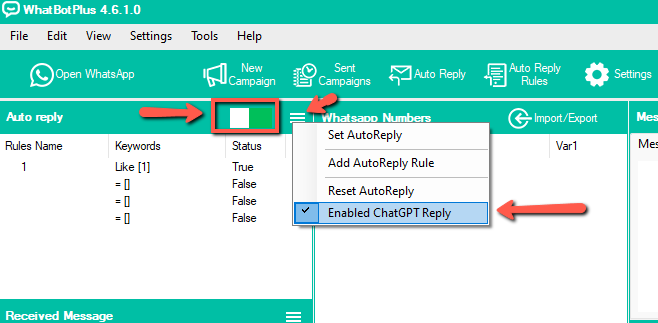
Go in Settings, click on ChatGPT tab and you will see a window where you need to add your API Key for ChatGPT.

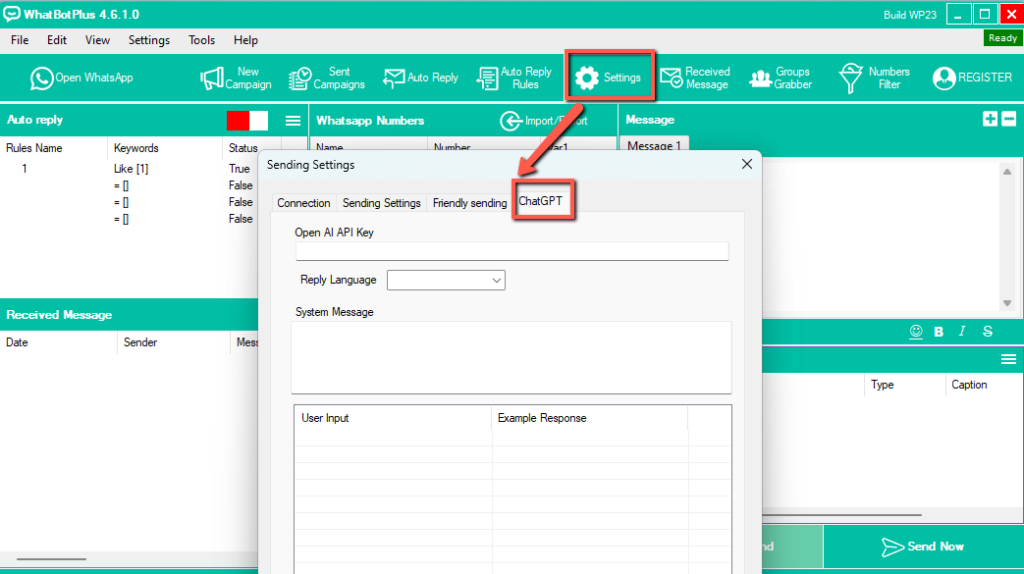
To get your API go to https://platform.openai.com/account/api-keys

Once you retrieve your key, copy and paste into the program.
NOTE: For the API to be active it is important to top up your OPENAI account balance by a few dollars. Go to BILLING and then click on ADD TO CREDIT BALANCE. With only 5 USD you will be able to use the program and the ChatGPT auto reply for 2–3 months!!
To add your credit card you need to go to this page.

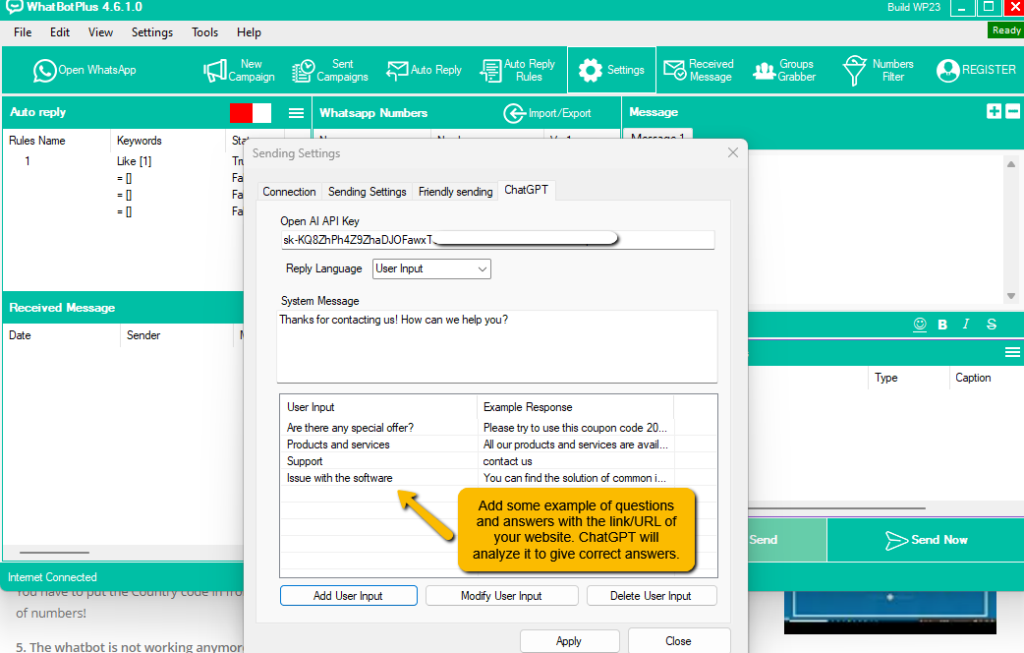
In addition to entering the APIs of your Openai account, you must also enter some “user input” examples. Thanks to these “inputs”, ChatGPT will be able to provide better and consistent responses to your contacts. We suggest you to add the link to your website among the “User Input”, in this way ChatGPT will analyze it and respond by indicating precisely what your services and products are and will offer adequate support to your customers.
OK, now that you’ve configured everything, all you have to do is try. Send some test messages and verify and replies given by ChatGPT. You will be amazed!!